Claude Code Integration
The Claude Code integration connects Anthropic's Claude Code CLI with iTerm2. Once you set it up, iTerm2 shows each Claude session's state (working, waiting, or idle) in the Session Status tool, and a ready-made Workgroup puts your Claude conversation, a diff viewer, and a code-review session a single click apart.
The integration is optional, and you can undo it as easily as you install it. It lists everything it changes up front, and iTerm2 > Uninstall Claude Code Integration reverses all of it.
Requirements
You need the Claude Code CLI installed and runnable as claude. The integration uses iTerm2's Python API to convey each session's status to iTerm2 and to add Code Review findings to the Workgroup's shared Clippings panel, so the installer offers to turn the Python API on if it is not already on.
Installing
Select iTerm2 > Install Claude Code Integration to open the setup window. It opens with a summary of everything it will change, and walks you through the steps one at a time. Each step is optional except enabling the Python API.
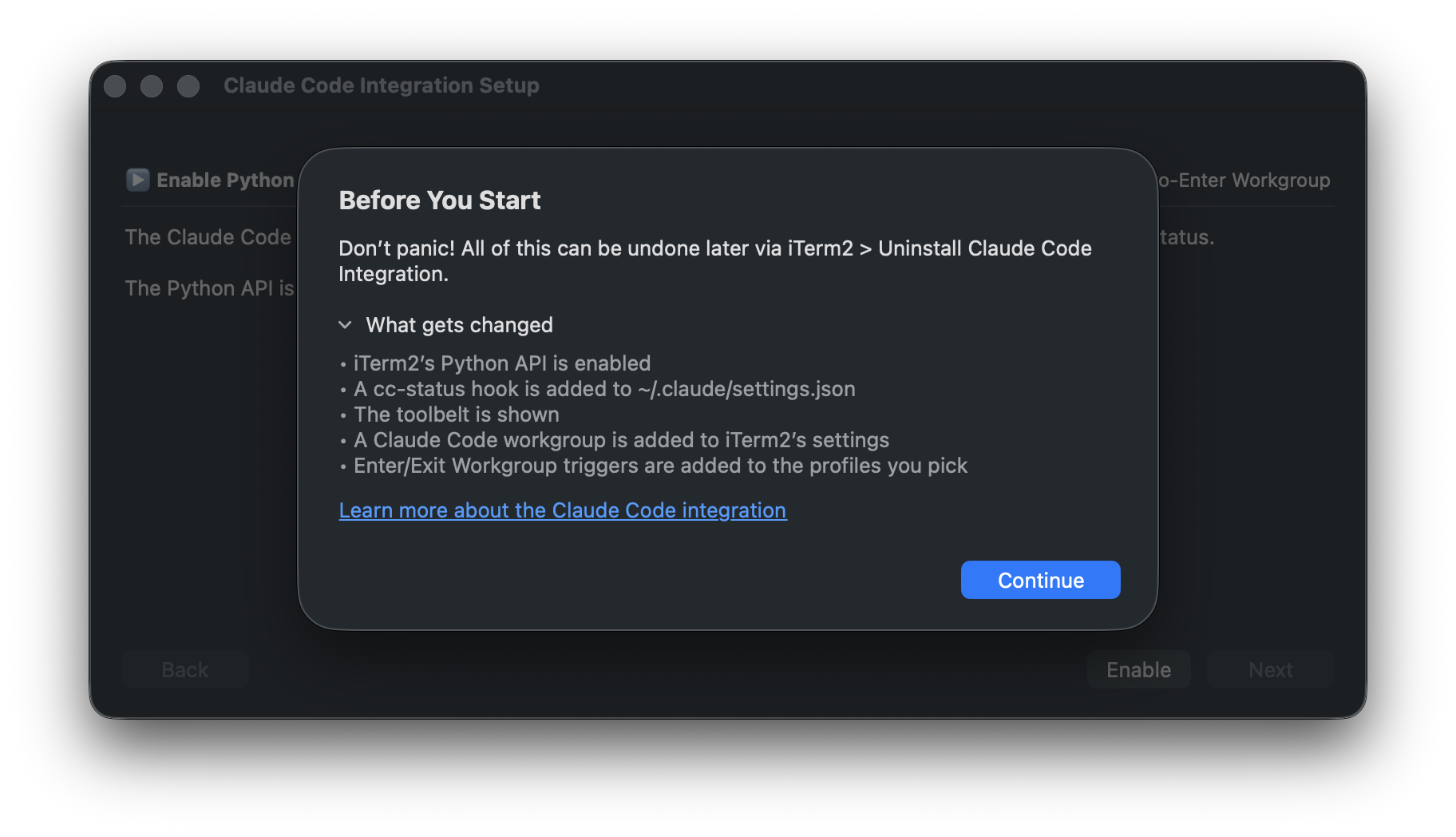
The installer performs the following actions:
- Enables the Python API.
- Adds hooks to
~/.claude/settings.jsonthat report status updates to iTerm2. - Shows the toolbelt and enables the Session Status tool.
- Adds a Claude Code Workgroup to iTerm2's settings.
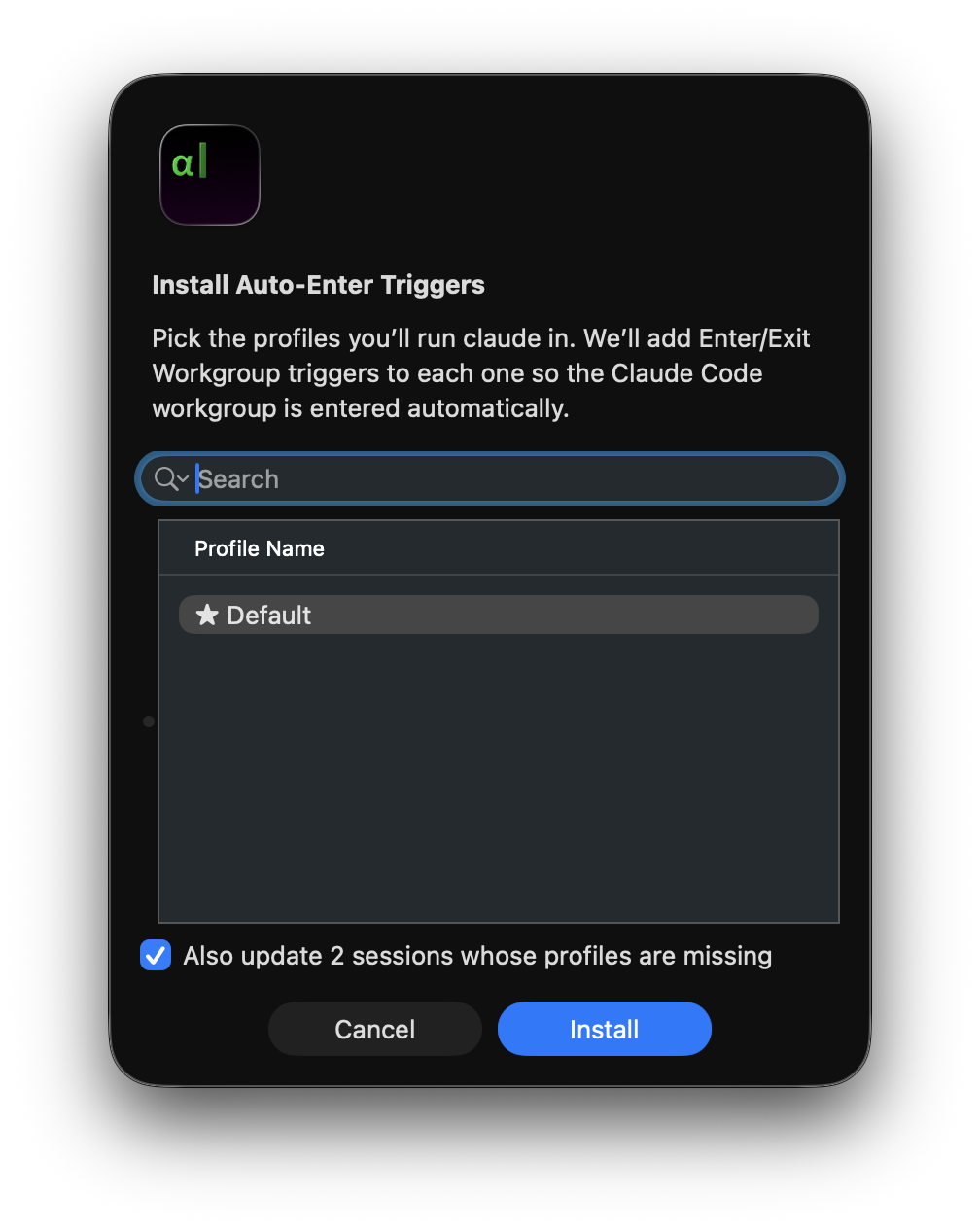
- Adds Enter/Exit Workgroup triggers to the profiles you pick.
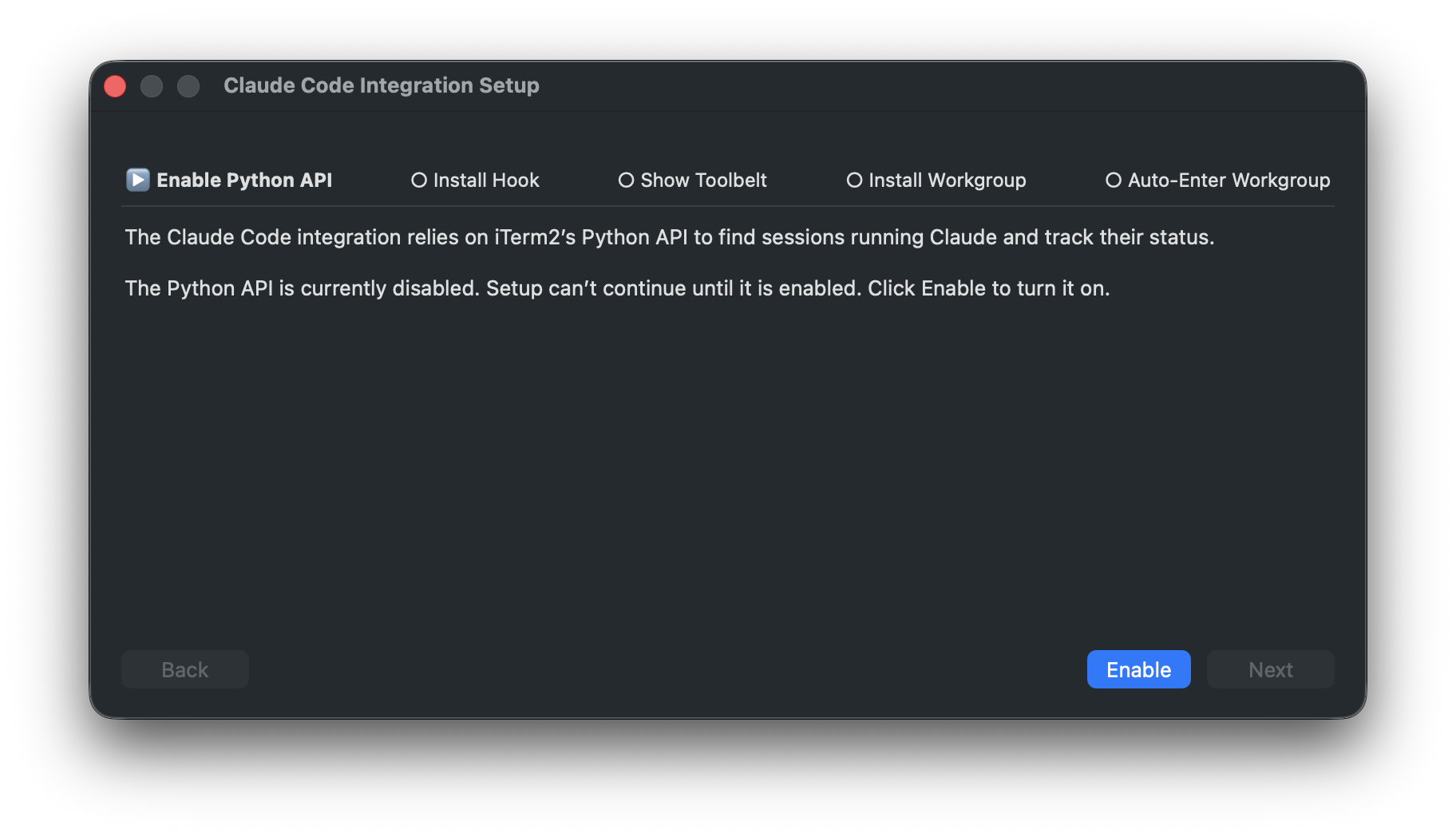
Enable Python API
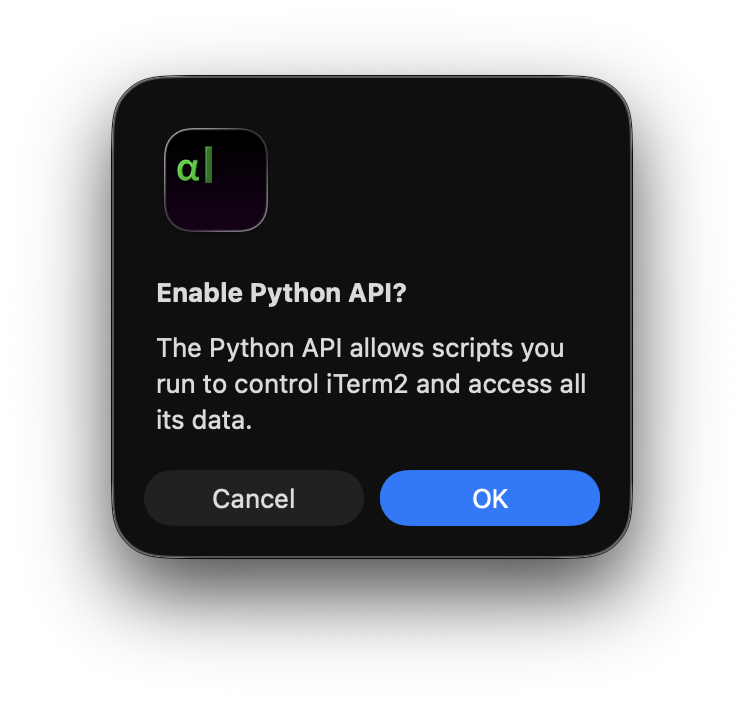
The integration relies on it to convey Claude's status to iTerm2 and to share Code Review findings through the Clippings panel, so setup can't continue until you enable it. macOS asks you to confirm before the API turns on.
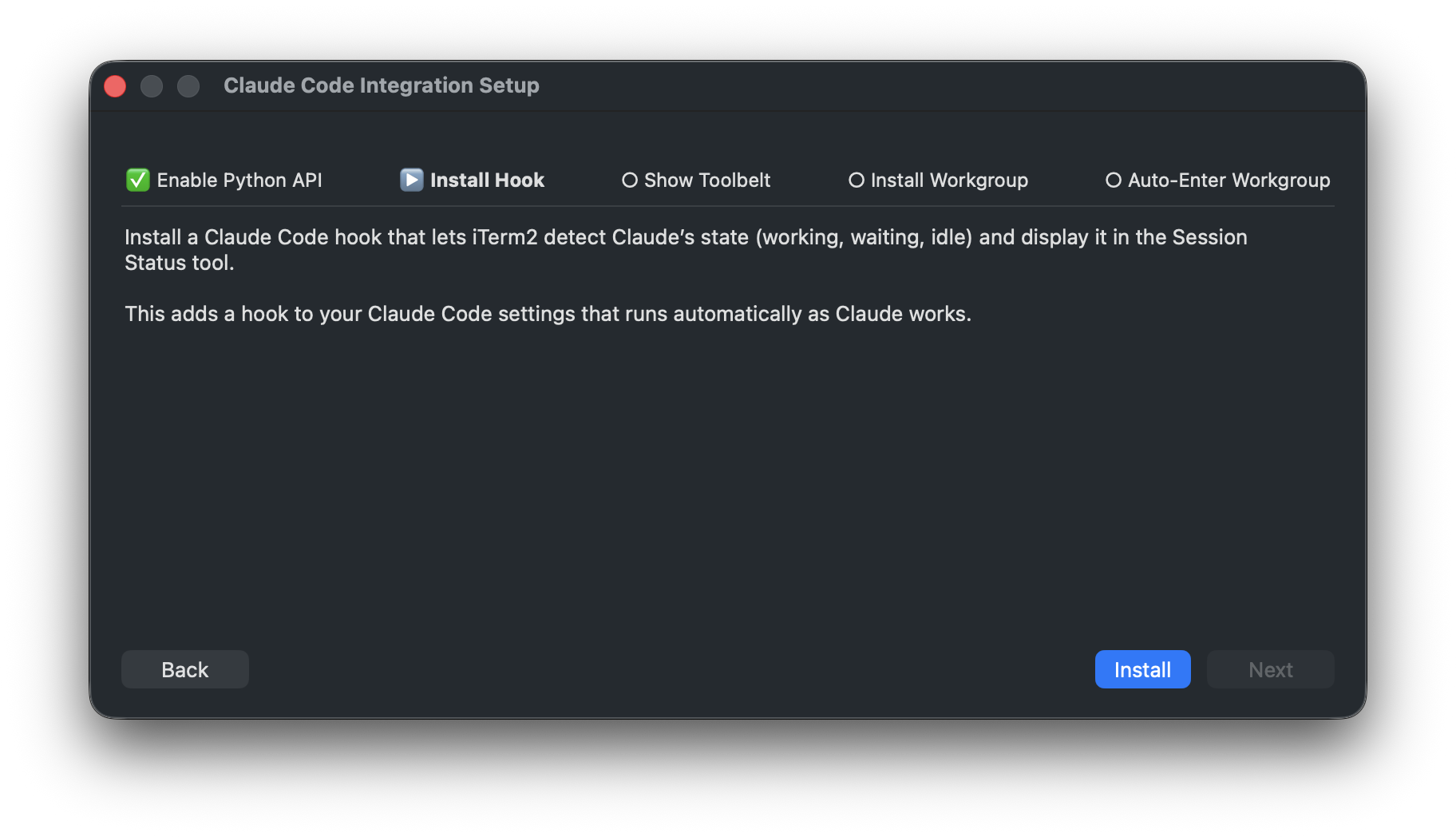
Install Hook
Adds hooks to your Claude Code settings (~/.claude/settings.json) that run automatically as Claude works. The hook is what lets iTerm2 detect Claude's state (busy/working/idle) and show it in the Session Status tool. The hook points at a stable location inside iTerm2's configuration directory, so upgrading or moving iTerm2 does not break it.
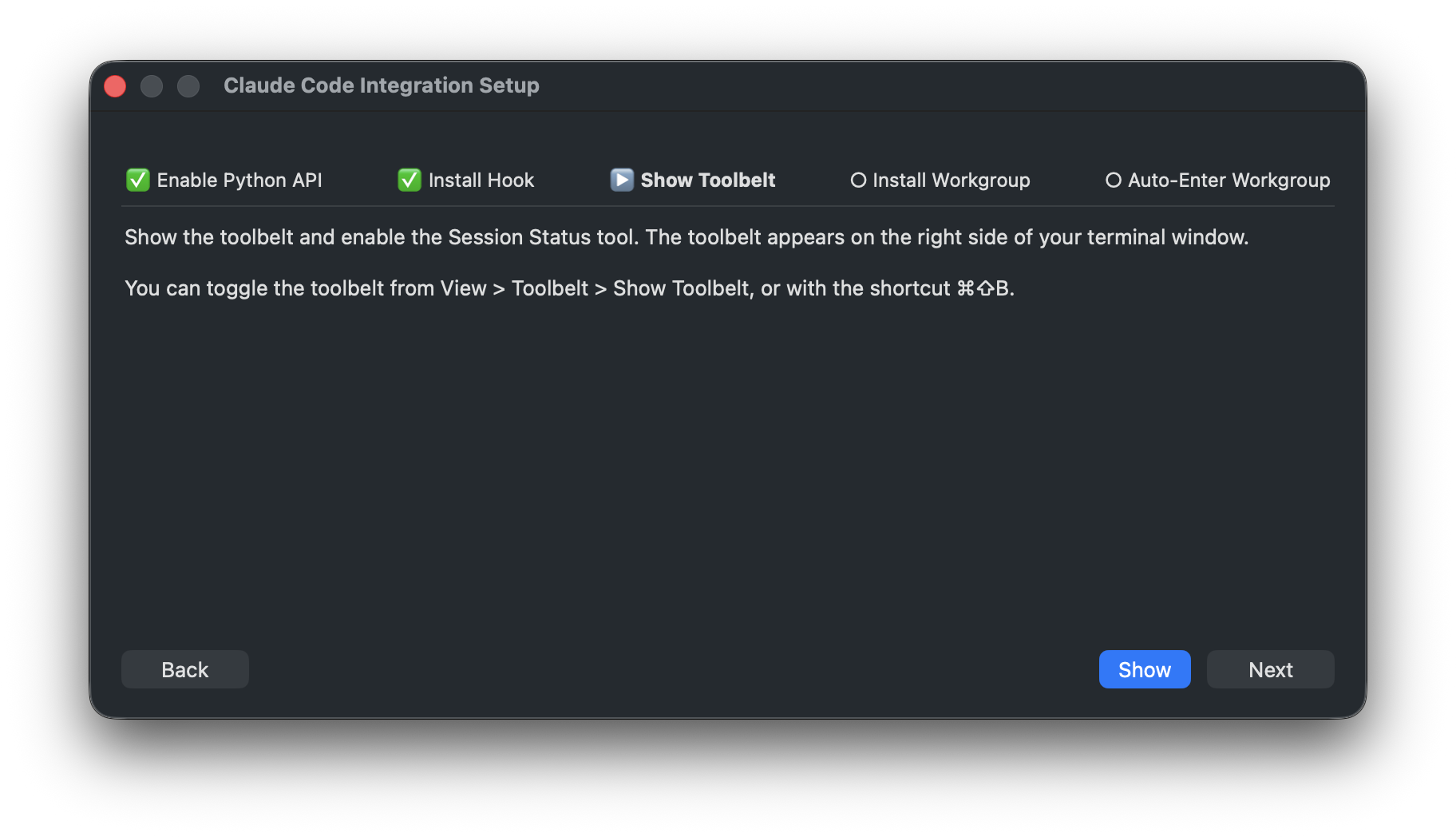
Show Toolbelt
Shows the toolbelt (on the right side of the window) and enables the Session Status tool. You can toggle the toolbelt at any time from View > Toolbelt > Show Toolbelt or with ⌘⇧B.
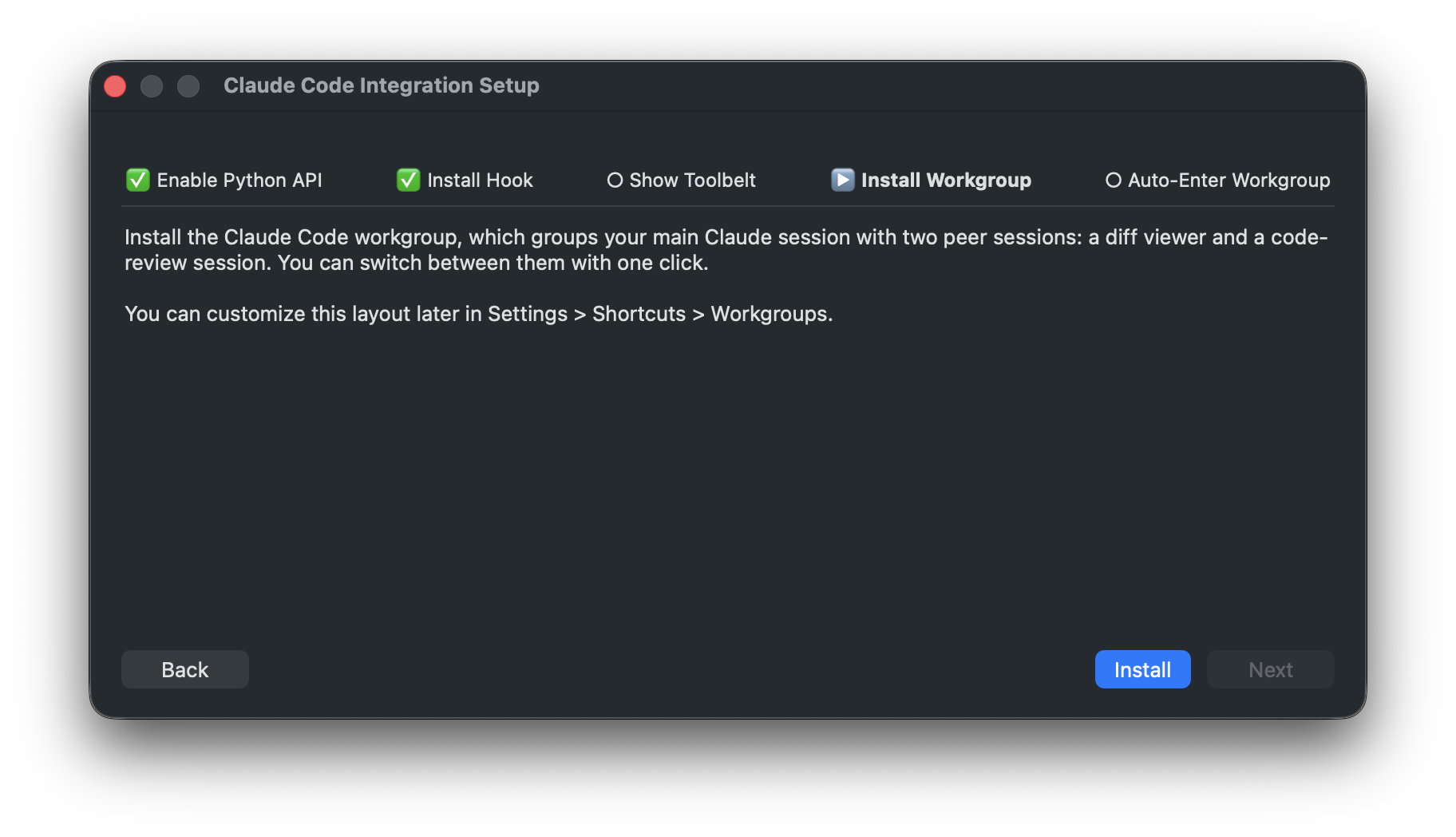
Install Workgroup
Adds the Claude Code Workgroup to your settings. See The Claude Code Workgroup below. You can customize the layout afterward in Settings > Arrangements > Workgroups.
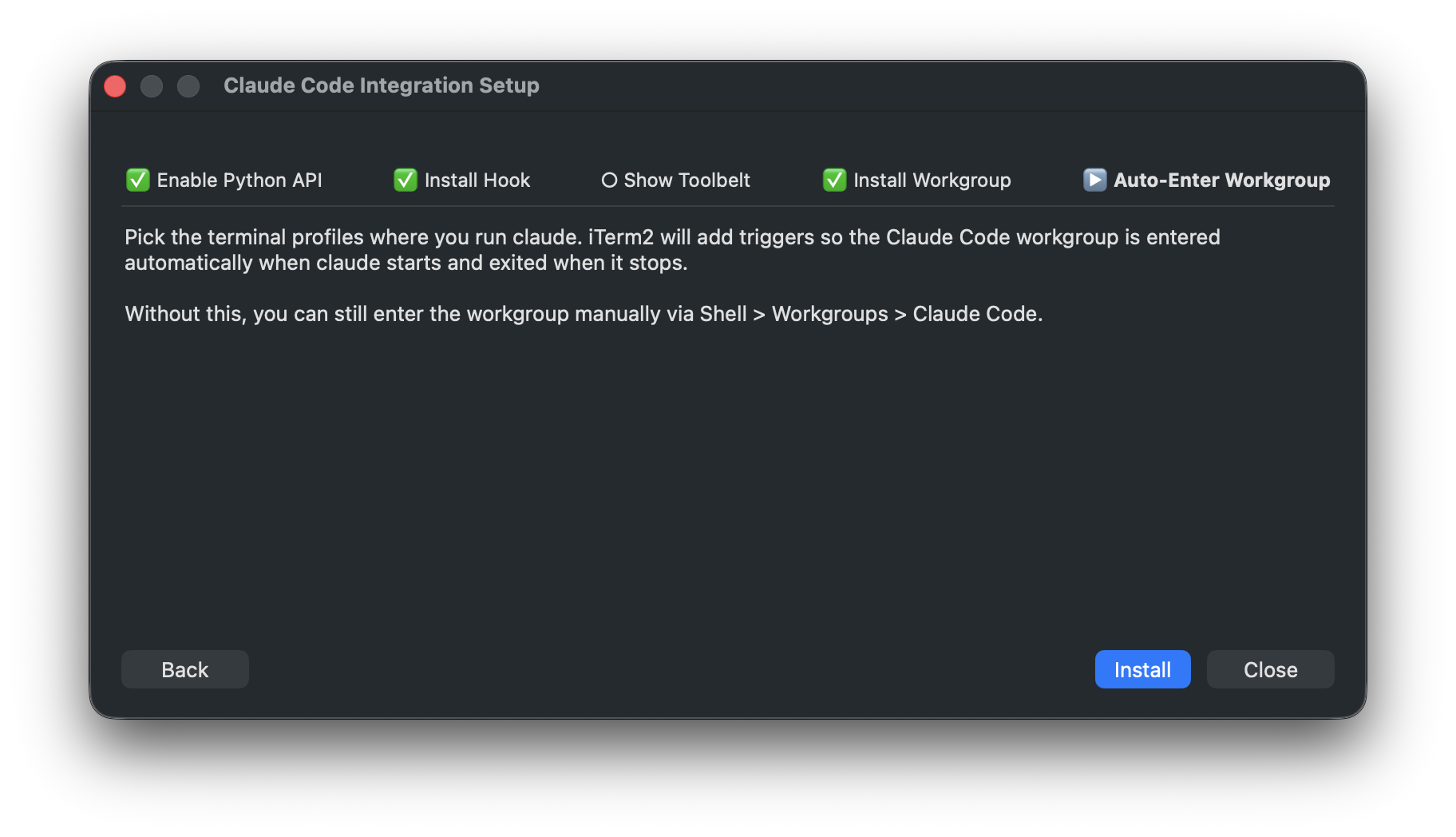
Auto-Enter Workgroup
Lets you pick the terminal profiles you run claude in. iTerm2 adds triggers to each one so it enters the Workgroup automatically when claude starts and exits when the main session's claude stops. This step is optional; you can always enter the Workgroup by hand from Shell > Workgroups > Claude Code. For how these triggers behave at runtime, see Entering the Workgroup Automatically below.
Session Status
The Session Status tool in the toolbelt lists your sessions with the status each one reports. Show it with View > Toolbelt > Session Status (the installer does this for you). For Claude, the cc-status hook keeps it current automatically, so each session shows a colored dot and a label for its state:
- working while Claude is running a prompt or a tool
- waiting when Claude needs your input, for example to approve a permission request
- idle when Claude has finished and is waiting for your next message
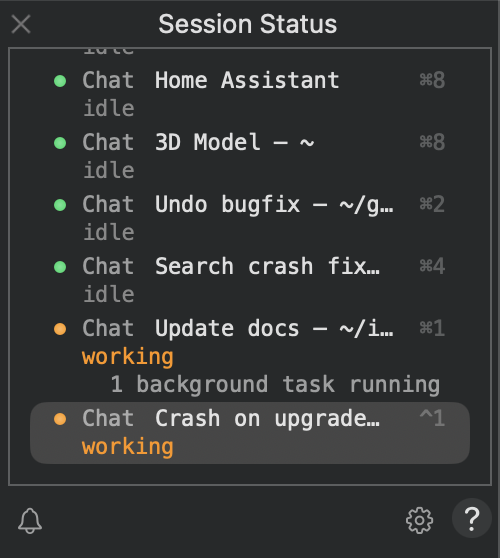
With a recent version of Claude Code, a session stays working while background agents or background tasks it launched are still running, even when the main conversation is momentarily idle between them. This keeps watchers from firing during the lulls between subagent phases; the session only becomes idle once the background work is actually done.
A row may also show a short detail line, such as the tool a permission request is for or a snippet of Claude's last message. The tool sorts sessions by priority, so the ones that need attention rise to the top. Click a row to jump to that session.
The Claude Code Workgroup
A Workgroup defines how to build a set of related sessions from a single one. Entering the Claude Code Workgroup creates two Peers alongside your main Claude session:
- Chat is your main Claude conversation.
- Diff shows a side-by-side view of your working-tree changes.
- Code Review is a dedicated session for reviewing changes.
Switch between the Peers with one click using the Workgroup's toolbar, and customize the whole layout (commands, toolbar items, additional Peers) in Settings > Arrangements > Workgroups. Workgroups are a general iTerm2 feature; the Claude Code Workgroup is just a preset the installer adds as ordinary, editable settings. To learn what else Workgroups can do, see the Workgroups documentation.
Entering the Workgroup Automatically
If you installed the Auto-Enter Workgroup triggers, iTerm2 enters the Workgroup for you whenever claude starts in one of the profiles you chose, and exits it when the main session's claude stops. The triggers filter on the claude job, so they don't fire for anything else. The Exit trigger is leader-only: only the main (leader) session's claude ending tears the Workgroup down, so ending or reloading claude in a Peer like the Diff or Code Review session leaves the rest of the Workgroup intact.
To enter the Workgroup by hand at any time, use Shell > Workgroups > Claude Code. To leave it, use Shell > Workgroups > Exit Workgroup.
Trying It Out First
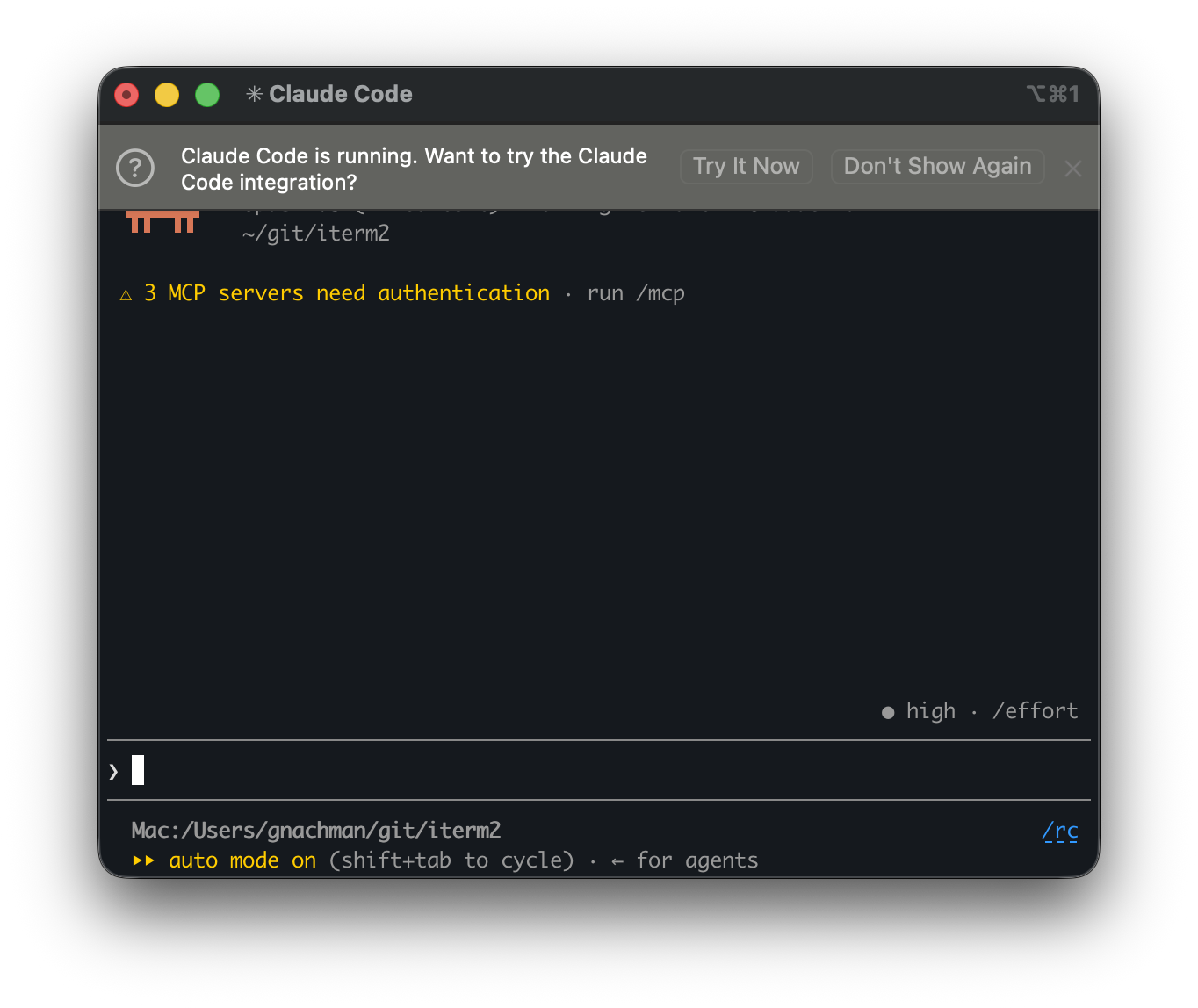
When Claude Code is running in a session and you have not set up the integration yet, iTerm2 offers a one-time banner: "Claude Code is running. Want to try the Claude Code integration?" Click Try It Now to enter the Workgroup on the spot (the entry is temporary and ends when Claude stops), or Don't Show Again to dismiss the offer for good. Installing the integration from the menu makes the Workgroup permanent.
Repairing a Broken Installation
Claude Code occasionally rewrites ~/.claude/settings.json and can drop the cc-status hook. If that happens after you have set the integration up, iTerm2 notices the next time Claude runs and offers to reinstall the hook so the status indicators keep working. Choose Reinstall to reopen the setup window, or Not Now to dismiss. You can also reinstall at any time from iTerm2 > Reinstall Claude Code Integration.
Uninstalling
Select iTerm2 > Uninstall Claude Code Integration. This removes the cc-status hook from ~/.claude/settings.json, the Claude Code Workgroup from your settings, and the Enter/Exit Workgroup triggers from every profile.
If the Python API is enabled, iTerm2 asks whether to leave it on, since other scripts or integrations may now depend on it. You can reinstall the integration any time from iTerm2 > Install Claude Code Integration.