Utilities
iTerm2 has a collection of shell scripts that help you take advantage of some of its unique features. When you install Shell Integration from the iTerm2 > Install Shell Integration menu, you're asked if you'd like to install the Utilities Package as well. This page describes these utilities.
If you prefer to install only the utilities (without also installing Shell Integration) you can find them here. Most of the utilities work without Shell Integration.
Components
The Utilities Package contains the following programs:
imgcat
The imgcat program displays images inline in your terminal.
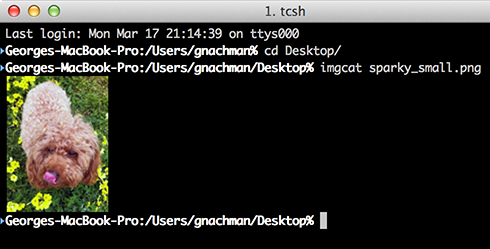
It supports all standard image formats, including animated GIFs.
Usage:
imgcat filename [filename...]

or

cat image | imgcat
imgls
Lists the files in a directory with thumbnail previews for images.
Usage:
imgls [filename...]
it2
it2 is a command-line tool that lets you drive iTerm2 from the shell. It is installed automatically wherever Shell Integration loads, so it is on your PATH without any extra setup.
With it2 you can create windows, tabs, and split panes, send text to sessions, run commands, manage profiles, set a session's status, monitor iTerm2 for events, and more.
Usage:
it2 subcommand [options]
The available subcommands are:
alias          Execute an alias from the config file.
app            Control the iTerm2 application.
auth           Manage authentication with iTerm2.
clear          Shortcut for 'it2 session clear'.
config-path    Show the configuration file path.
config-reload  Reload the configuration file.
load           Load a custom profile from the config file.
ls             Shortcut for 'it2 session list'.
monitor        Monitor iTerm2 events.
new            Shortcut for 'it2 window new'.
newtab         Shortcut for 'it2 tab new'.
profile        Manage iTerm2 profiles.
run            Shortcut for 'it2 session run'.
send           Shortcut for 'it2 session send'.
session        Manage iTerm2 sessions.
set-status     Shortcut for 'it2 session set-status'.
split          Shortcut for 'it2 session split'.
tab            Manage iTerm2 tabs.
vsplit         Shortcut for 'it2 session split --vertical'.
window         Manage iTerm2 windows.
Run it2 --help, or it2 help subcommand, for details on any of these.
it2 also works over SSH Integration. When you run it on a host you reached through iTerm2's SSH integration, its requests are routed back to your local iTerm2 and run there. This is gated by a per-session permission: the first time a remote it2 command tries to control iTerm2 you are asked to allow it. The Shell > SSH > Remote host can control iTerm2 menu item toggles this permission and shows a checkmark while it is granted.
it2attention
Requests attention. Can bounce the dock icon or show a fireworks animation at the cursor position.
Usage:
it2attention start
  Begin bouncing the dock icon if another app is active
it2attention stop
  Stop bouncing the dock icon if another app is active
it2attention fireworks
  Show an explosion animation at the cursor
it2check
Checks if the terminal emulator is iTerm2.
Example:

it2check && echo This is iTerm2 || echo This is not iTerm2
it2copy
Copies text to the pasteboard. Works over ssh. Accepts either standard input or a named file.
Examples:

cat file.txt | it2copy
it2copy file.txt
For this to work you must enable Prefs > General > Applications in terminal may access clipboard.
it2dl
The it2dl program downloads files. This is useful when you are ssh'ed to a remote host.
Usage:
it2dl filename
In iTerm2 3.7 and later, a terminal-initiated download asks whether to save the file to your Downloads folder or to choose a destination with a save panel. This prompt is silenceable: you can make it always save to Downloads or always show a save panel.
it2getvar
Fetches a session variable. For a list of session variables, see the Badges page.
Example:

it2getvar session.name
it2setcolor
Configures iTerm2's colors.
Usage

1) To set a specific color to an RGB value:
  it2setcolor name color [name color...]
For example:
  it2setcolor fg fff

name is one of:
  fg bg bold link selbg selfg curbg curfg underline tab
  black red green yellow blue magenta cyan white
  br_black br_red br_green br_yellow br_blue br_magenta br_cyan br_white

color is of the format:
  RGB        (three hex digits, like fff)
  RRGGBB     (six hex digits, like f0f0f0)
  cs:RGB     (cs is a color space name)
  cs:RRGGBB  (cs is a color space name)

  The color space names accepted in the color are:
    srgb       (sRGB, the default if none is specified)
    rgb        (Apple's old device-independent colorspace)
    p3         (Apple's fancy large-gamut colorspace)

2) To switch to a named color preset:
  it2setcolor preset name
For example:
  it2setcolor preset 'Light Background'

3) To reset the current tab's color to the system default:
  it2setcolor tab default
it2setkeylabel
Configures touch bar function key labels.
Usage:
   it2setkeylabel set Fn Label
     Where n is a value from 1 to 20
   it2setkeylabel set status Label
     Sets the Touch Bar "status" button's label
   it2setkeylabel push [name]
     Saves the current labels with an optional name. Resets labels to their default value, unless name begins with a . character.
   it2setkeylabel pop [name]
     If name is given, all key labels up to and including the one with the matching name are popped.
Recommended usage for customizing an application is to set key labels and then push with a name of a concatenation of the app's name (e.g., "emacs") and a random number. When the app exists, pop to that same name.
it2ul
Uploads a file. Works over ssh.
Usage: it2ul [destination [tar flags]]
  If given, the destination specifies the directory to place downloaded files.
  Further options are passed through to tar. See your system's manpage for tar for details.
If used without arguments, the file goes to the current directory. When you run this, you'll be prompted to select one or more files. Next, iTerm2 creates a tar.gz file containing those files and base-64 encodes them. The it2ul script receives it, decodes it, and untars it with -xzfC. Any arguments you provide go after a lone - argument,
it2universion
Sets the unicode version for the current session. The key difference is that unicode 8 and unicode 9 use different width tables for emoji. Most apps aren't updated to use the unicode 9 tables, but Unicode 9 produces nicer results with fewer overlapping characters.
Usage:
  it2universion set 8
  it2universion set 9
  it2universion push [name]
     Saves the current version with an optional name.
  it2universion pop [name]
     If name is given, all versions up to and including the one with the matching name are popped.
Location
The Utilities Package places shell scripts in $HOME/.iterm2/ and creates aliases to them at the bottom of $HOME/.iterm2_shell_integration.$SHELL.